Make the visual
Upload the same MP3 or WAV you use in Premiere, pick a style and colors, and set Background to Transparent.
Premiere Pro has no built-in audio visualizer, and the usual workarounds mean templates or a trip into After Effects. Audoriva makes the visual for you in the browser, synced to your song, and exports a transparent file you place on the track above your footage.
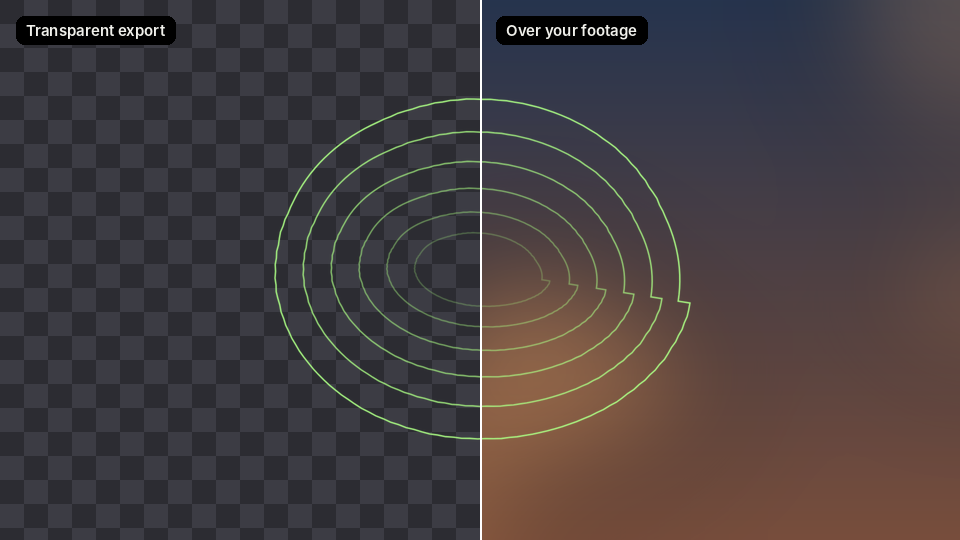
Make the visualizer first, then bring it in like any other clip. It lines up with your song because the export starts at the beginning of the track.
Upload the same MP3 or WAV you use in Premiere, pick a style and colors, and set Background to Transparent.
Choose Professional for a 60 FPS Transparent MOV (lossless) or ProRes 4444. On the free plan, export a transparent PNG sequence (15 FPS, up to 60 seconds).
Press Cmd+I (Ctrl+I on Windows) and select the MOV. Drag it onto the video track above your footage, and align its start with the start of your song.
In Effect Controls, use Motion to move and scale it. Under Opacity, set Blend Mode to Screen for the brightest glow. Mute or delete its audio if your song is already on the timeline.
Lossless MOV and ProRes 4444 exports carry a true alpha channel, so only the visual shows over your footage.
The visual is driven by your actual audio, frame by frame, instead of a looping stock animation.
Everything runs in the browser. Pro exports render on our server, so your computer stays free while you edit.
No. Premiere Pro does not include an audio-reactive visualizer effect. People usually build one in After Effects or use a template. Audoriva exports a ready-made transparent visualizer you can drop straight into Premiere.
Transparent MOV (lossless) is the smallest pixel-perfect option and imports into Premiere Pro with transparency. ProRes 4444 also works and is a common choice if your team already uses ProRes.
Glow is light, so it looks best when the layer blend mode is Screen or Add. In Effect Controls, open Opacity and change Blend Mode to Screen.
Yes. Free users can export a transparent PNG sequence at 15 FPS, up to 60 seconds. In Premiere, import the first frame and tick Image Sequence, then set the clip to 15 fps with Modify, Interpret Footage.
Pro server exports cover up to four minutes of a song. For longer tracks, export the section you need.
No installation required. Preview any style free before choosing an export format.